workflow · native-macos
⌘⇧4 isn't enough — when to graduate from native
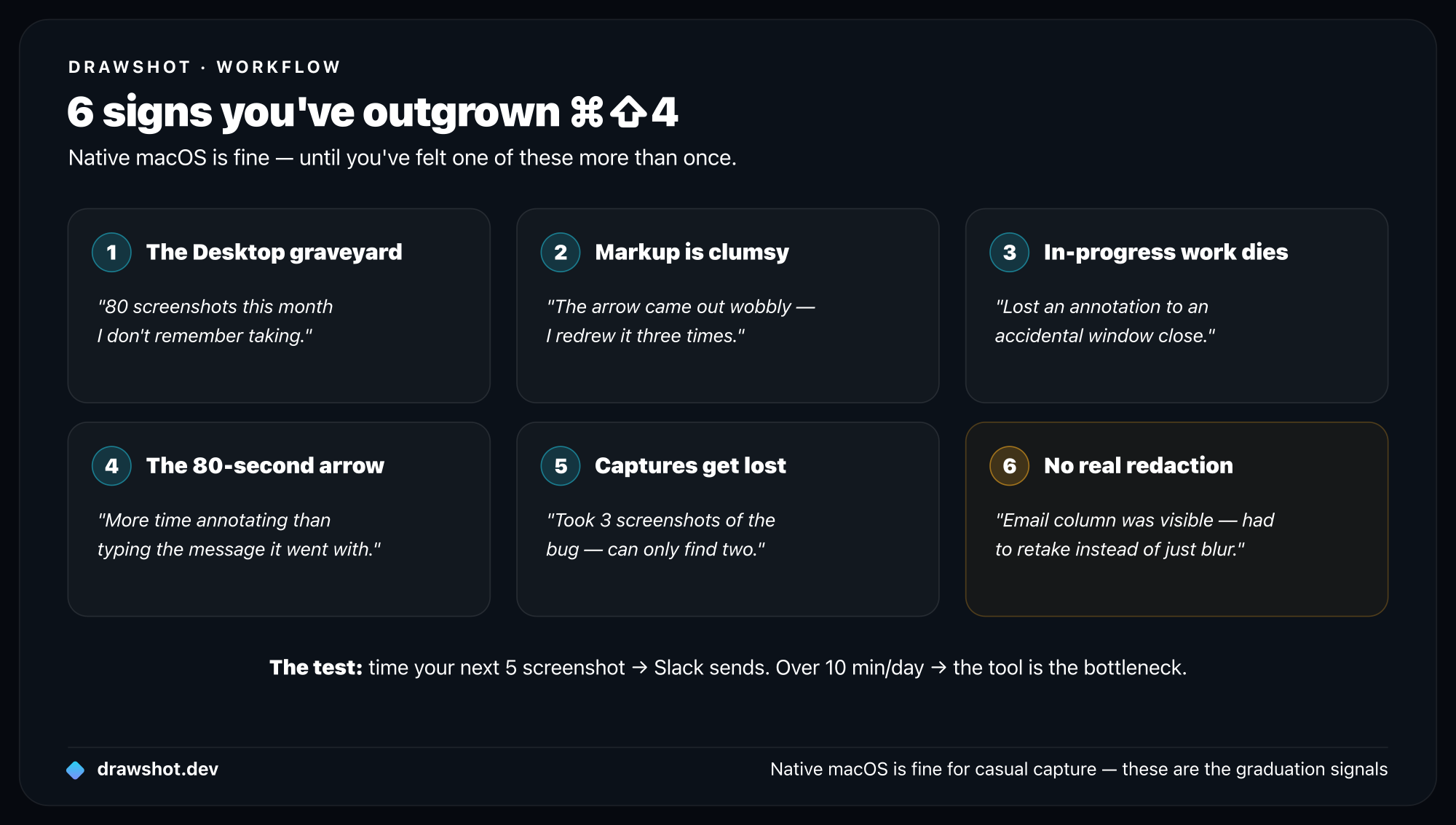
The native macOS screenshot tool (⌘⇧4 + Markup) is genuinely fine for casual use. It runs out of road at six specific points — the Desktop graveyard, clumsy Markup, lost in-progress work, slow annotation, lost multi-captures, and no real redaction. When you've felt one of those more than once, it's time to graduate.
The native macOS screenshot tool is good enough for most people. I want to say that clearly before this post sounds like an argument it isn't.
If you take 1–5 screenshots a day and your annotation needs are "draw a line around this, maybe write a word," ⌘⇧4 plus Preview Markup is fine. You don't need a third-party tool.
This post is for the people in the next bracket — somewhere between 10 and 80 captures a day — who keep feeling like the native workflow is slowing them down but haven't quite articulated why. There are six specific points where native runs out of road. Once you hit any of them, it's probably time.
The native macOS workflow today
To be fair, here's what ⌘⇧4 actually does in macOS Sequoia (2025+):
⌘⇧4→ drag region → file saves to Desktop, thumbnail floats in corner.- Click the floating thumbnail to open Markup — basic annotation, then save.
⌘⇧5→ fancy picker UI with record-screen, record-region, save-to-clipboard options.- Long-press the thumbnail to access OCR (extract text from the capture).
Honestly, it's not bad. macOS native has caught up a lot since 2018.
But it caps out fast. Here are the points where I personally hit the wall.
1. The Desktop graveyard
Every native screenshot lands on Desktop by default. You can change the default to a folder, but you can't change the default to "don't save anywhere unless I say so."
If you take 20+ captures a day and don't manually clean up, your Desktop accumulates ~600 PNG files a month. Most of them you sent to someone and forgot about. The Desktop becomes both a filing problem and a privacy problem — every screen share now shows that pile of Screenshot 2026-05-15 at...png files.
The graduation signal: "I cleaned out my Desktop again and there were 80 screenshots from this month I don't remember taking."
2. The Markup annotation toolbar
macOS Markup has the basic shapes — line, arrow, rectangle, ellipse, text, sketch. They all work. But:
- No keyboard shortcuts for tool switching. You click the toolbar every time.
- No consistent color palette (you pick from a color well, no presets).
- Text labels don't auto-size their background pill.
- The arrow tool doesn't constrain to 45° angles when you hold Shift.
- Sketch (freehand) doesn't smooth your stroke.
Each individual gap is small. They add up to ~5–10 extra seconds per annotation if you're picky about how it looks.
The graduation signal: "I drew an arrow, it came out wobbly, I undid it three times to redraw it cleanly."
3. Losing the in-progress annotation
This one took me the longest to articulate. Native Markup runs as a Preview window. If you alt-tab to Slack to grab a teammate's username and then alt-tab back, the Preview window is still there. But:
- If you
⌘Wit without saving, your annotations are gone. - If the floating thumbnail times out (≈5 seconds), the markup-pencil quick-edit path is gone — you have to find the file on Desktop and open it manually.
- If you take a second screenshot before sending the first, the first thumbnail vanishes.
I lost work this way three times before I gave up on native. Each time, the screenshot was annotated, half-done, and I was about to paste it into Slack — then I got distracted, came back, and had to start over.
The graduation signal: "I lost an annotation I'd just finished because of an accidental window close."
4. The 80-second arrow
Time yourself on this workflow with native tools:
- Capture a region of your screen
- Open the capture for annotation
- Draw an arrow pointing at one element
- Add a small text caption next to the arrow ("this is broken")
- Copy to clipboard
- Paste into Slack
On native macOS Sequoia, the median for this is ~25–30 seconds. For me as a heavy user, around 22 seconds.
Doable. But you do it 30 times a day, which is 10 minutes daily, which is roughly 40 hours a year of pure context-switching busywork.
The graduation signal: "I just spent more time annotating a screenshot than typing the message it went with."
5. Multiple captures in flight
If you're debugging something and take three screenshots in a minute — say, of an error, of the network tab, of the console — native gives you three floating thumbnails. Sort of.
What actually happens:
- The first thumbnail vanishes when the second appears (~5 sec timeout).
- You can't easily re-open the first one to add an annotation.
- Each capture has annotated state stored only in its open Preview window (if you happened to open it).
For single-capture workflows this doesn't matter. For multi-capture workflows it's painful.
The graduation signal: "I took three screenshots of the bug, and now I can only find two on my Desktop."
6. The redaction problem
Native macOS Markup has no real "blur this region" tool. The pixelate effect is hidden inside Preview's editing tools and is awkward to apply with precision.
Most people work around this by either:
- Using a black rectangle (which works, but looks ugly)
- Skipping the screenshot entirely and describing the issue in text
- Using a third-party tool
None of those are great. If you screenshot anything with billing data, customer info, or internal Slack messages — which most people do, several times a week — you need a real redaction tool.
The graduation signal: "I screenshotted a customer dashboard, realized the email column was visible, and had to retake the capture instead of just blurring it."
What "good" looks like after you graduate
When the native workflow stops working, what you're looking for is some combination of:
- Single-key annotation tools — letters or numbers on the keyboard switch tools, no toolbar-hunt.
- Persistent captures across app switches — your in-flight annotation doesn't die when you alt-tab.
- A real blur / redaction tool — for the email addresses, billing data, and customer names that appear in 30% of your captures.
⌘Sas the default destination — not a file on Desktop you'll have to delete later.- Constraints when you want them — Shift for 45°, Option for "draw from center," etc. — so your annotations look intentional.
DrawShot has all of these. Shottr has most of them. The leading paid alternative has all of these plus a lot more (and a price tag). Pick whichever matches your scope.
Should everyone graduate?
No. Native macOS is genuinely fine for casual capture. Most people will be fine forever with ⌘⇧4.
The graduation moment is specific: when you've actually felt one of the six pain points above, and you've felt it more than once. Don't switch tools on a hunch. Switch when your workflow starts costing you time you didn't budget for.
If you're not sure, the test is easy: time your next 5 screenshot-to-Slack sends with native tools. Multiply by your daily capture count. If the total exceeds 10 minutes a day, the tool is the bottleneck.
Frequently asked questions
Is the native macOS screenshot tool good enough? For 1–5 casual captures a day with light annotation, yes — ⌘⇧4 plus Preview Markup is fine. It caps out for heavier users at six points: the Desktop file pile, clumsy Markup, losing in-progress annotations, slow multi-step annotation, lost multi-captures, and no real redaction tool.
When should I switch from ⌘⇧4 to a screenshot app? When you've actually felt one of the six pain points more than once — not on a hunch. A quick test: time your next five screenshot-to-Slack sends with native tools and multiply by your daily count. If it exceeds ~10 minutes a day, the tool is the bottleneck.
How do I blur or redact part of a screenshot on Mac? Native Markup has no real blur tool — the pixelate effect is buried in Preview and hard to apply precisely. A dedicated drag-to-blur region (like DrawShot's Blur tool, key B) is far faster when captures contain emails, billing data, or customer names.
If you decide to try DrawShot — Download it free, no account.
If you decide native is still fine — that's a valid answer too.
— Shraddha
drawshot.dev · v1.0 · macOS 13+ · free
DrawShot — free macOS screenshot annotator
Annotate your first screenshot in under 30 seconds. No account, no signup.
— Shraddha Mittal
Related reading