how-to · ai · privacy
Summarize Any Screenshot With AI (Privacy-Safe)
TL;DR: To summarize a screenshot with AI, you read the text out of the image and feed that text to a model for a short summary. The catch with most online image summarizers is that they upload your entire screenshot — every pixel in frame — to their server to do it. The privacy-safe pattern flips the order: extract the text on-device first, then send only that text to the AI. That's exactly how DrawShot's coming Summarize feature works — on-device OCR reads the shot, only the recognized text leaves your Mac (never the pixels), and you get a ≤50-word bullet summary to copy or stamp on the image.
Some screenshots are too long to read and too important to ignore. A wall-of-text stack trace. A six-paragraph terms-of-service someone pasted in a thread. A dashboard packed with numbers. A long chat you got pulled into. You don't need every word — you need the gist, fast, ideally in a form you can drop into a ticket or a note.
That's a job for AI summarization. But "summarize my screenshot" usually means "upload my screenshot," and that's a worse trade than it looks. Here's how screenshot summarization actually works, why the privacy architecture is the whole game, and the privacy-safe way that's coming to DrawShot.
How summarizing a screenshot works
It's two steps chained together — and which two is the part that matters:
- OCR — optical character recognition reads the picture of text and turns it into actual, machine-readable text. (Same idea as extracting text from a screenshot — verbatim, copyable.)
- Summarize — that extracted text goes to a language model, which condenses it into a few short bullets capturing the meaning.
The question that decides everything: what gets sent to the cloud — the image, or just the text?
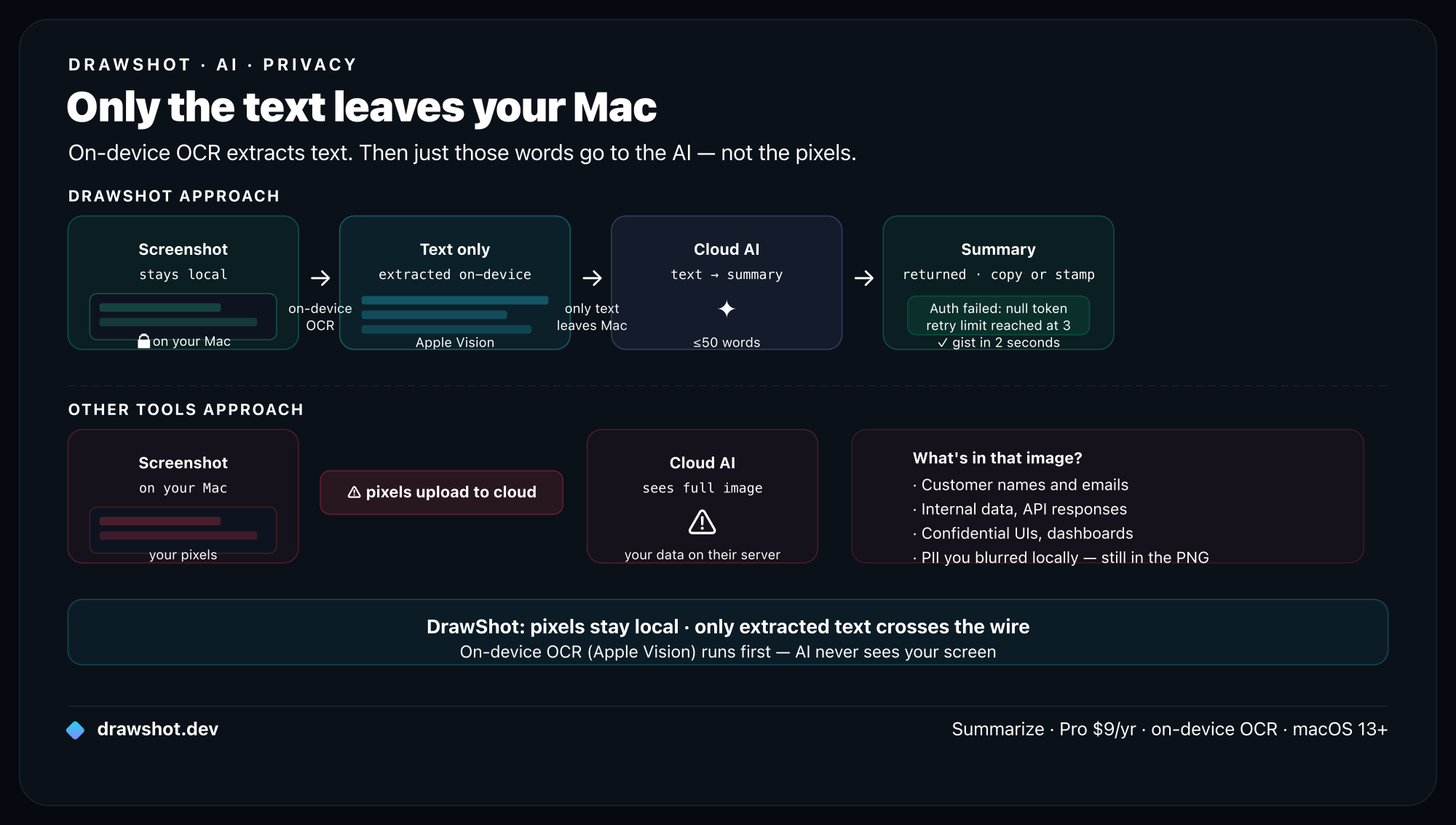
Most online image summarizers — the iWeaver / NoteGPT / Evernote-style web tools — send the whole image. They have to: the OCR runs on their server too. So your full screenshot, every pixel in frame, lands on a third party's machine.
The privacy-safe design does OCR first, on your device, and sends only the resulting text to the AI. The model never sees your pixels — it only ever receives the words it needs to summarize. Same summary, dramatically smaller blast radius.
Why "only the text leaves" is the whole point
Think about what's actually in a work screenshot beyond the text you care about: the rest of the dashboard, the customer's name two rows up, an open Slack DM in the corner, a browser tab title, an internal URL, a face. When a tool uploads the image, all of that goes too — not just the paragraph you wanted summarized.
When a tool extracts the text on-device and uploads only that text, the picture — and everything incidental in it — never leaves your Mac. You've narrowed what's exposed from "my entire screen at that moment" down to "the specific words I asked to be summarized."
For anything internal — production logs, customer data, unreleased UI, private conversations — that's the difference between a tool you can use at work and one you can't.
It's the same principle the whole app is built on; I wrote about it in why DrawShot is local-only, and the permissions & privacy doc spells out exactly what does and doesn't touch the network.
To be precise about the trade-off, since this is the one feature that does use the cloud: Summarize is not 100% on-device the way OCR and annotation are — the summarization model runs in the cloud, so the recognized text does leave your Mac to be summarized. What never leaves is the image. That's the honest line: pixels stay, text travels.
Where DrawShot fits: Summarize, then copy or stamp
DrawShot already does the first half on-device. Text OCR (also coming to Pro) reads the screenshot locally using Apple's Vision framework. Summarize builds straight on top of it:
- On-device OCR → cloud AI. The text is recognized on your Mac, then only that text is sent up for the summary. The pixels stay put.
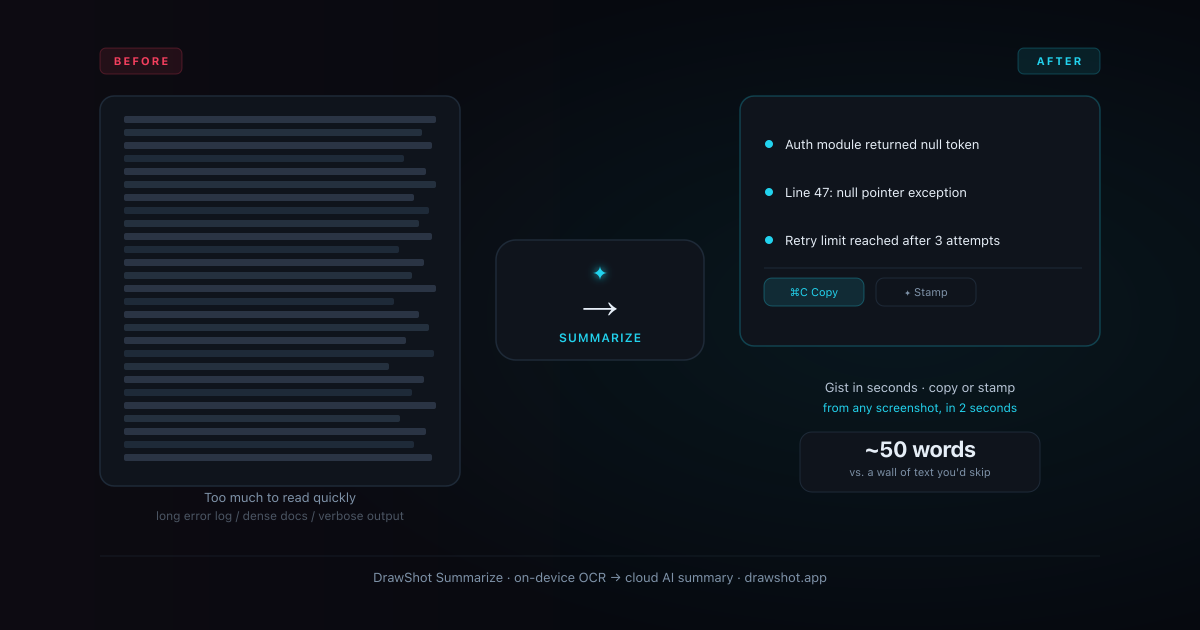
- ≤50-word bullet summary. Short by design — a handful of bullets with the gist, not a second wall of text to read.
- Copy or stamp. Take the summary to your clipboard to paste into a ticket, a note, or a message — or stamp it directly onto the image, so the shot you share carries its own TL;DR baked in.
That last one is the nice part: a screenshot of a long error, exported with a three-bullet summary stamped on it, is a better bug report than either the raw shot or a paragraph of description. The reader gets the gist and the evidence in one image.
The coming-soon honesty: Summarize ships in the Pro tier ($9/year — about $0.75/month), on its way, not live today. The free core annotator — capture, 11 tools, blur, ⌘S save-and-copy — is available now and is the thing to install first, so the AI features drop into a loop you already use.
When this is actually worth it
Summarizing a screenshot is overkill for a short message and perfect for these:
- Long error logs / stack traces — get the "what actually broke" line out of a screen of noise, then stamp it on the shot before it goes in the ticket.
- Terms, contracts, policy text — a quick gist of a dense block someone screenshotted, without reading all of it (a starting point, not legal advice).
- Busy dashboards — the headline of what a packed metrics screen is saying.
- Long threads & articles — a screenshotted conversation or a paywalled-feeling wall of text, condensed to a few bullets.
The test is simple: if the screenshot is long or dense and you only want the gist, summarize it. If it's a button and an arrow, just annotate it.
Frequently asked questions
How do I summarize a screenshot with AI? Run the screenshot through a tool that reads the text in it and feeds that text to an AI for a short summary. Most online image summarizers upload your whole image to do this. A privacy-safe approach extracts the text on-device first, then sends only that text to the AI — so you get a short bullet summary without your pixels ever leaving your Mac. That's how DrawShot's coming Summarize feature works: on-device OCR, then a ≤50-word summary you can copy or stamp on the image.
Is it safe to upload a screenshot to an AI summarizer? Be careful. Most web "image summarizer" tools upload the full screenshot — every pixel, including anything sensitive in frame — to their server. For a public article that's fine; for an internal dashboard, a customer record, or a private thread, you're handing a copy to a third party. The safer pattern is on-device OCR that sends only the extracted text to the AI, never the image itself.
What's the difference between OCR and an AI summary of a screenshot? OCR turns the picture of text into actual, copyable text — verbatim. An AI summary takes that text and condenses it into a few short bullets capturing the gist. They chain together: OCR first to read the screenshot, then the AI to summarize what it read. DrawShot's coming Text OCR gives you the raw text; Summarize gives you the short version.
When is summarizing a screenshot actually useful? When the screenshot is long or dense and you only need the gist — a wall-of-text error log, a multi-paragraph terms-of-service, a busy dashboard, a long chat thread, or a screenshotted article. Instead of reading all of it, you get a ≤50-word bullet summary you can paste into a ticket or note, or stamp right onto the image before you share it.
The best AI summary is the one that doesn't ship your pixels to a stranger.
Summarize is coming to DrawShot Pro — on-device OCR first, then a ≤50-word AI summary you can copy or stamp right onto the shot. $9/year. Be first to know when it ships.
Get on the Pro list →Or download the free annotator now — capture, annotate, blur, ⌘S save-and-copy, all live today. Summarize lands on top when Pro ships.
— Shraddha
AI Summarize runs entirely on your Mac — no pixels leave your machine. Part of DrawShot Pro at $9/year.
Free core tools · no account required · Apple Silicon native
— Shraddha Mittal
Related reading