roundup · comparison
Best Screenshot Tool for Mac (2026): 7 Picks Ranked
I'll say it plainly up front: I build one of the tools on this list (DrawShot), and I've written this to be useful even if you never install it. The honest truth is that "best screenshot tool for Mac" has no single answer — it depends entirely on the job you do most. So this roundup ranks each tool by the task it's actually best at, not by who has the longest feature list.
TL;DR: For most people who screenshot, mark something up, and paste it into Slack or a doc all day, DrawShot is the best pick — fastest annotate-and-paste, fully private, and the cheapest pro tier at $9/year. If you want one app that does everything (scrolling, recording, cloud), CleanShot X wins. For the best free tool, Shottr. Pick by your most common task, not the spec sheet.
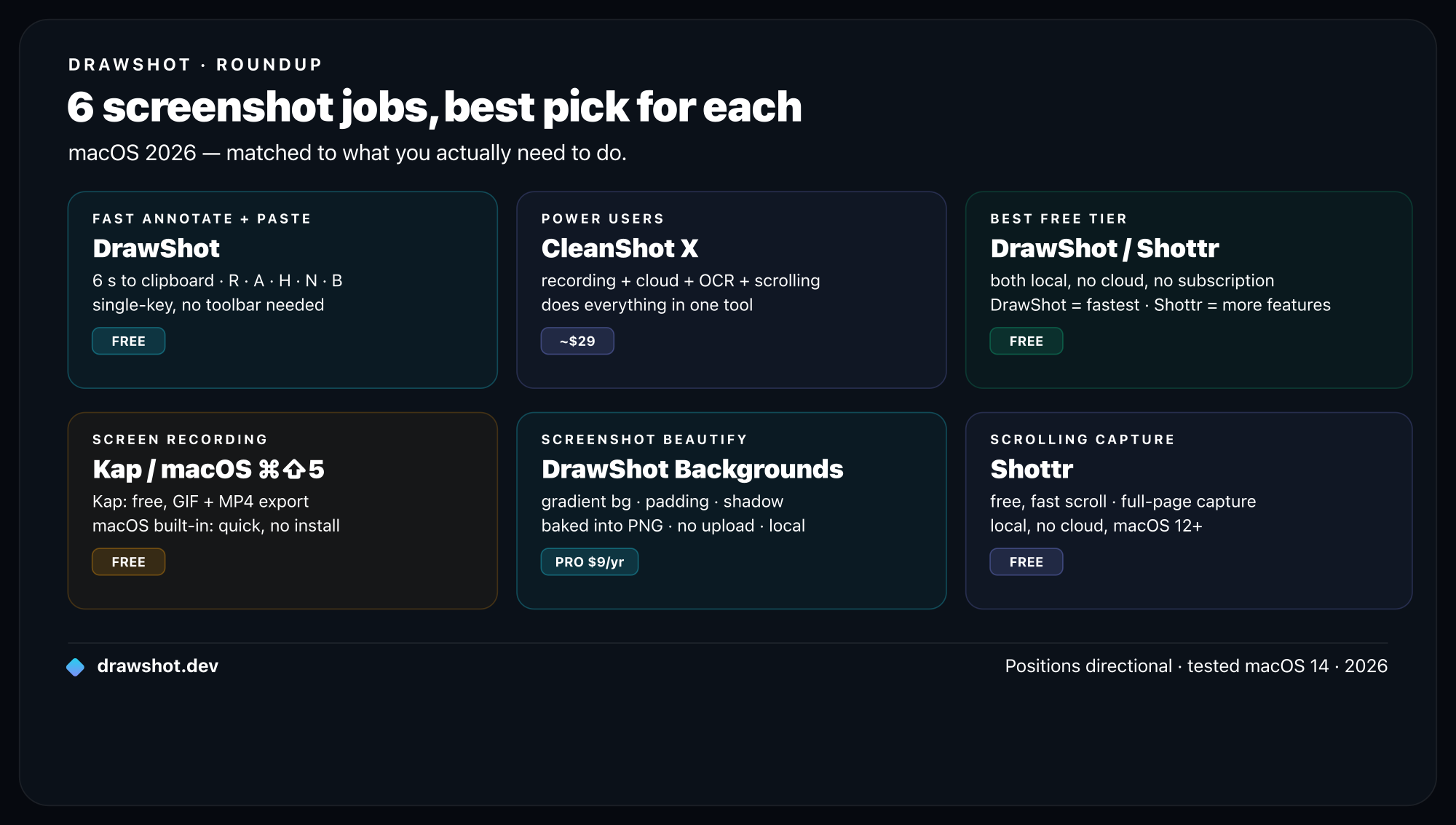
Summary comparison
| Tool | Best for | Capture | Recording | Price | Platform |
|---|---|---|---|---|---|
| DrawShot | Fast annotate-and-paste + privacy + cheap pro | Region / window / full / menu (native) | No | Free; Pro $9/yr (coming soon) | macOS 13+ |
| CleanShot X | Power users who want everything | Region / window / full + scrolling | Yes (video + GIF) | ~$29 one-time; cloud sub | macOS |
| Shottr | Best free pick (devs/designers) | Region / window / full + scrolling | No | Free; Pro ~$8 one-time | macOS 11+ |
| Snagit | Recording + step-by-step tutorials | Region / window + scrolling | Yes (video) | ~$60–65 | macOS + Windows |
| Xnapper | Beautifying shots for social/marketing | Region / window | No | ~$30 | macOS |
| macOS built-in | Free, occasional captures | Region / window / full (⌘⇧3/4/5) | Yes (screen) | Free | macOS |
| Zight | Cloud capture + sharing for teams | Region / window / full | Yes (video + GIF) | Free tier; paid plans | macOS + Windows |
DrawShot — best for fast annotate-and-paste, privacy, and cheap pro
Best for: people who capture, mark up, and paste dozens of times a day and want it private and cheap.
DrawShot is built around one wedge: it's the screenshot tool that annotates itself. There's no new hotkey to learn — you keep using the native macOS shortcuts (⌘⇧4 for region, ⌘⇧4 then Space for a window, ⌘⇧3 for full screen, ⌘⇧5 for the menu). The moment macOS writes a screenshot to your Desktop, a Loom-style toast slides in from the top-right corner in about 150–300ms. Click it and you're on the annotation canvas. The median capture-to-clipboard time, with one annotation, is around four seconds.
The annotation layer is genuinely fast because every tool is a single keypress: Draw (D, the default), Arrow (A), Rectangle (R), Circle (O), Highlight (H), Eraser (E), Stamp (S), Blur (B), Crop (C), Callout (L), and Step numbers (N). Four preset colors plus a custom wheel, three stroke weights, ⌘Z to undo. When you're done, ⌘S saves an annotated PNG to ~/Pictures/DrawShot/ and copies it to the clipboard in a single keystroke — so it's ready to paste immediately. The toast stack keeps your shots for the session, is disk-backed so it survives a crash, and never steals focus.
On privacy, DrawShot is the strictest tool here: 100% local, no cloud, no telemetry, no analytics, no account. The only outbound network connection is an optional daily update check. It's a notarized universal binary (Apple Silicon + Intel), about 22MB, menu-bar only with no Dock icon, and runs on macOS 13+.
Where it deliberately stops: no scrolling capture and no video or GIF recording. DrawShot is an annotator, not a recorder. If a full-page scroll or a screencast is your daily need, a tool below will serve you better. The free tier is the full core annotator, free with no signup. Pro is $9/year (about $0.75/month, recurring), marked "coming soon," and adds on-device OCR via Apple Vision, AI Summarize, AI auto-naming, capture history, and full backgrounds and mockups. That makes it the cheapest pro tier in this roundup. You can grab it from the download page, and the full keymap lives in the annotation tools docs.
Pick it if your bottleneck is the annotate-and-paste loop and you care about staying local. Skip it if you need scrolling capture or recording today.
CleanShot X — best for power users who want everything
Best for: people who want one polished app that covers capture, recording, cloud, and OCR.
CleanShot X is the dominant premium Mac capture app, and it earns that position by being broad and well-built. It does scrolling capture, screen recording (including GIF export), OCR, an organized capture history, and cloud sharing with view tracking. The interface is genuinely polished, and the all-in-one nature means you rarely reach for a second app.
The trade-offs are price and architecture. The base app is a one-time purchase of around $29, but the cloud features (hosted sharing, tracking, longer retention) sit behind a separate subscription. And by design, cloud sharing means your captures can leave your machine — fine for many teams, a non-starter if you need everything to stay local. CleanShot X is also a heavier app than the minimalist tools here.
Pick it if you want maximum capability in one app and don't mind paying for polish. If you're specifically weighing it against a lighter, more private workflow, I wrote a dedicated CleanShot X alternative breakdown. Skip it if you only annotate-and-paste, where it's more app than you need.
Shottr — best free pick (devs and designers)
Best for: developers and designers who want measurement, OCR, and scrolling capture without paying.
Shottr is the best free tool on this list, full stop. It's tiny (around 9MB), fast, and includes a remarkable amount for free: scrolling capture, OCR, a pixel-measurement tool, and a color picker. For front-end and design QA work, that measurement tool alone makes it worth installing. It supports macOS 11+, so it reaches back further than some newer apps.
A one-time Pro license runs around $8 and unlocks extra niceties, but the free tier is already enough for most individuals. Annotation is solid, though it isn't built around the single-key-per-tool flow that makes a dedicated annotator feel instant — it's a broad utility belt rather than a focused markup tool. There's no video recording.
Pick it if you want a free, lightweight Swiss-army tool with measurement and OCR. I compare the two head-to-head in DrawShot vs Shottr, and Shottr also leads my roundup of the best free macOS screenshot tools. Skip it if you want the fastest possible annotate-and-paste loop specifically.
Snagit — best for recording and step-by-step tutorials
Best for: people who build documentation, training material, and how-to guides, especially across Mac and Windows.
Snagit, from TechSmith, is the veteran in this category and it's aimed at a different job than the others: producing polished instructional content. It does screen recording and screencasts, scrolling capture, a media library to organize assets, and templates for turning a series of screenshots into a step-by-step guide. If your output is a tutorial, an onboarding doc, or a training deck, Snagit's library and templates save real time.
It's the priciest pick here at around $60–65, and it's a heavier, more traditional app. But it's also cross-platform — the same workflow on macOS and Windows — which matters if your team is mixed. I go deeper on the trade-offs in this Snagit alternative comparison.
Pick it if you make tutorials and screencasts, or need Mac/Windows parity. Skip it if you just want quick annotated screenshots — it's overkill for that.
Xnapper — best for beautifying shots for social and marketing
Best for: marketers and founders making hero screenshots for landing pages, social posts, and app stores.
Xnapper has a narrow, well-executed purpose: making screenshots look good. It adds gradient backgrounds, balanced padding, device and browser frames, drop shadows, and auto-redaction of sensitive text. The output looks like designed marketing material rather than a raw capture, which is exactly what you want for a launch graphic or a tweet.
It's priced around $30 (one-time). It's not built for an in-flight annotation workflow — you wouldn't reach for it to circle a bug — but for turning a plain screenshot into something presentation-ready, it's the specialist. (DrawShot includes basic backgrounds, mockups, and seven photo filters, but Xnapper goes further on the pure beautify job.)
Pick it if you regularly publish screenshots and want them polished by default. Skip it if your captures are internal and you never style them.
macOS built-in — best for free, occasional captures
Best for: people who screenshot a few times a week and don't want to install anything.
It's worth being fair to what's already on your Mac. The native tools — ⌘⇧3 (full screen), ⌘⇧4 (region), ⌘⇧4 then Space (window), and ⌘⇧5 (the capture menu, which also records the screen) — have improved a lot, and Preview/Markup handles basic annotation: shapes, text, lines, signatures. Recent macOS versions even add OCR from the floating thumbnail.
The catch is the loop. Captures land on the Desktop and pile up, the Markup interface feels dated, there's no persistent toast stack or session memory, and getting an annotated image into the clipboard takes noticeably longer than a dedicated tool. For occasional use, none of that matters. If you'd like to push the native tools further, I wrote a guide on how to annotate a screenshot on Mac.
Pick it if you take a handful of captures a week and "good enough" is genuinely enough. Skip it if you annotate constantly — the slow loop adds up fast.
Zight (formerly CloudApp) — best for cloud sharing and teams
Best for: distributed teams who want every capture instantly shareable via link.
Zight is cloud-first by design. It captures images and records screen video and GIFs, then uploads everything and hands you a shareable link — which is the whole point for teams that live in async updates and want a permanent, linkable record. The free tier is generous, and the collaboration features (comments, view tracking, team libraries) are built in rather than bolted on.
The flip side is the same as its strength: everything uploads to the cloud. If your work involves anything you'd rather not send to a third-party server, that's a real consideration, and it's the opposite end of the spectrum from a local-only tool like DrawShot.
Pick it if instant cloud links and team sharing are the core of your workflow. Skip it if you need captures to stay on your machine.
How to choose
A quick way to cut through it — match the tool to the sentence that sounds most like you:
- "I screenshot, mark it up, and paste it all day, and I want it private and cheap." → DrawShot
- "I want one app that does scrolling, recording, cloud, and OCR." → CleanShot X
- "I want the best free tool with measurement and OCR." → Shottr
- "I build tutorials and screencasts, sometimes on Windows too." → Snagit
- "I publish screenshots and want them to look designed." → Xnapper
- "I screenshot a few times a week and won't install anything." → macOS built-in
- "My team needs every capture as an instant shareable link." → Zight
You can absolutely run more than one — a fast annotator plus a recorder, say. They coexist fine. The mistake is forcing one tool to do a job it wasn't built for and then blaming the tool.
If "fast annotate-and-paste, fully local, $9/year for pro" is the sentence that fits you, see the pricing page for what Free vs Pro covers.
FAQ
What is the best screenshot tool for Mac in 2026? There's no single winner — it depends on the job. For fast annotate-and-paste with full privacy, DrawShot is the best pick. For a do-everything premium app, CleanShot X. For the best free tool with scrolling capture and OCR, Shottr. Match the tool to your most common task.
What is the best free screenshot app for Mac?
Shottr is the strongest free pick — it includes scrolling capture, OCR, pixel measurement, and a color picker at no cost. DrawShot's free tier is also fully featured for annotation. And macOS already ships a free built-in tool (⌘⇧4 / ⌘⇧5) that's fine for occasional captures.
Which Mac screenshot tool is best for privacy? DrawShot is the most private: it runs 100% locally with no cloud, no telemetry, no analytics, and no account. The only network connection is an optional daily update check. Cloud-first tools like Zight upload your captures by design.
Which Mac screenshot tool can record video or GIFs? CleanShot X, Snagit, and Zight all record screen video and GIFs. DrawShot and Shottr are annotators, not recorders — DrawShot deliberately focuses on the still-image capture-and-annotate loop rather than video.
What's the cheapest pro-grade Mac screenshot tool? DrawShot Pro is priced at $9/year (about $0.75/month), the cheapest pro tier in this roundup, with a free tier that stays free. Shottr's one-time Pro is around $8. CleanShot X is around $29 one-time, and Snagit runs around $60–65.
If the job that matters most to you is capture, annotate, and paste — fast, local, and inexpensive — DrawShot was built for exactly that. Download it free and run it alongside whatever else you keep on your Mac.
— Shraddha
DrawShot — free macOS screenshot annotator
Annotate your first screenshot in under 30 seconds. No account, no signup.
— Shraddha Mittal
Related reading